The White Tanks Repeater Console
A member's guide to wt.w7tbc.org — signing in, arranging your tiles, reading the repeater, and linking to other nodes
wt.w7tbc.org is the club's live window into the White Tanks repeater: what's on the air, who's linked, how the site is doing, and what the valley looks like from up there. Anyone can look. Members who sign in can do a little more — including linking the repeater to other AllStar nodes. This guide walks you through all of it.
What wt.w7tbc.org is
The White Tanks site carries the club's two repeaters — one on 2 metres and one on 70 centimetres — joined through AllStar so the two bands can be heard together. The console shows that system as a deck of tiles: live readouts, the site camera, and the AllStar link controls.
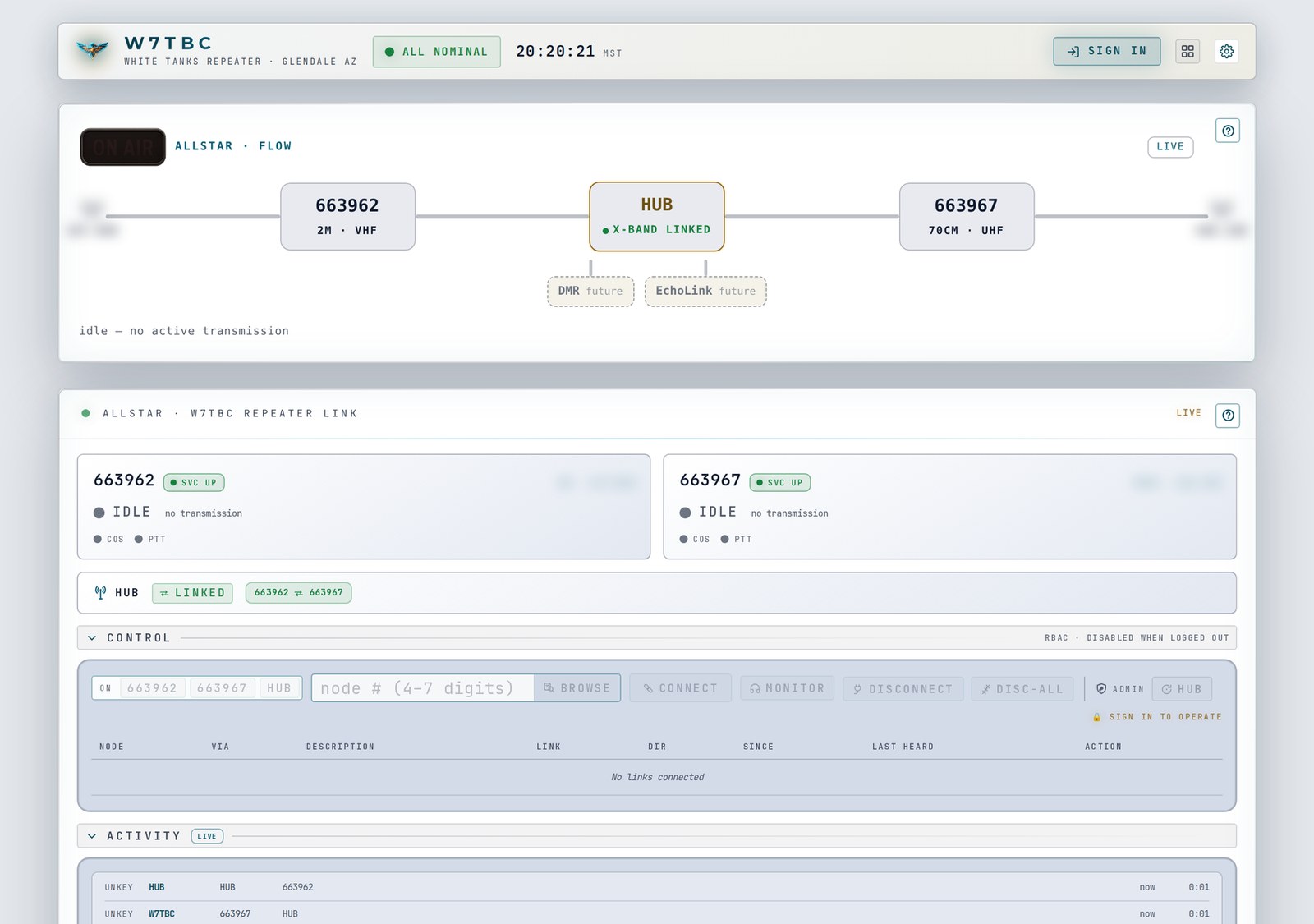
The console as a visitor sees it. Frequencies are blurred in every picture in this guide — the live tiles always show the current ones.
Three things to know up front:
Anyone can view it. No account is needed to watch the repeater, the camera and the site health.
Members can sign in with their callsign. That unlocks three more tiles and the AllStar link controls, and it saves your tile layout.
What you do on the AllStar controls goes out on the air. Read Connecting to other nodes before you press anything there.
Times on the console are Arizona time (MST — no daylight saving).
Signing in
There is no password. You sign in with your callsign and we email you a one-time link.
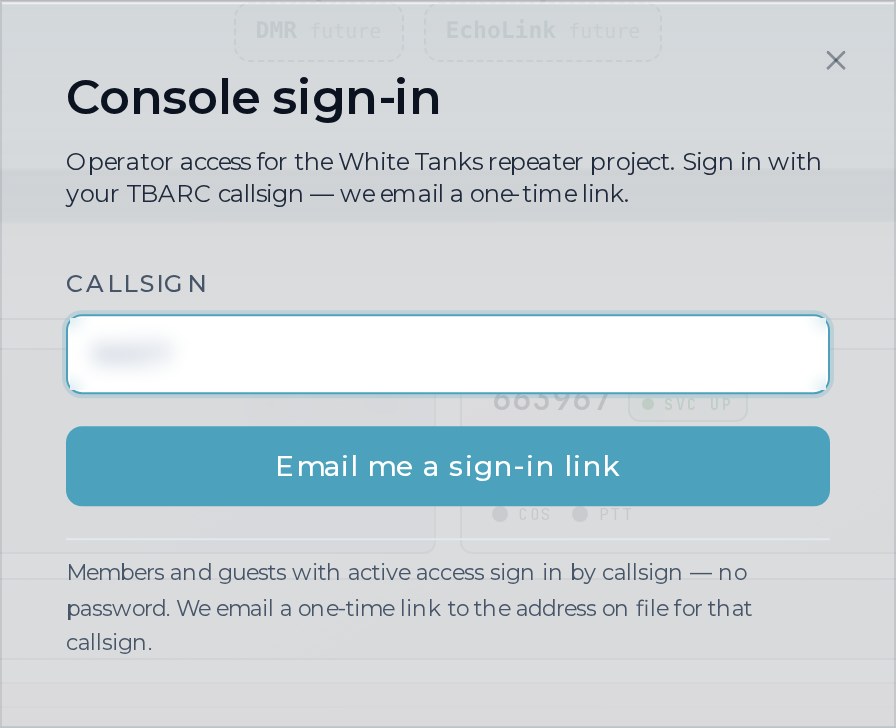
The sign-in card. It only asks for your callsign.
Choose Sign In in the top bar (or Sign In To Activate on any locked tile). A small Console sign-in card opens over the page.
Type your callsign in the Callsign box. It must be 3–7 letters and numbers.
Choose Email me a sign-in link.
The card closes, and in the top bar the Sign In button is replaced by "Auth link sent — check your email", with a try again link beside it.
Open the email "Your TBARC sign-in link" and choose Sign in →. The link is good for 15 minutes and works once.
A new tab says "You're signed in". You can close it — the console tab you started from unlocks itself within a few seconds, without a reload.
The email goes to the address on file for your callsign on the club roster (HamClubOnline). To change that address, update it on the club roster — the console can't change it.
Once you're in, you stay signed in for 7 days on that browser. The same sign-in also works on the club's other w7tbc.org sites. To sign out, choose Sign Out in the top bar.
If a link has problems you'll see a plain message instead — for example "That sign-in link expired — they're good for 15 minutes. Try again." or "That sign-in link was already used. Request a new one to sign in again." Just ask for a fresh one.
What changes when you sign in:
The top bar shows your callsign and Member, with Sign Out next to it.
Pi5 Telemetry, PDU Power and Network Devices unlock.
The AllStar link controls — Connect, Monitor, Disconnect, Browse, row drop and +time — turn on.
Your tile layout is saved to your account.

Signed in. The callsign shown here is a made-up example.
One quirk: if your club role is a field-day, content or communications role, you get the member tiles, but the link controls stay grey and say "officers only". That's about your console role, not your club office: ask an officer to check it.
The page at a glance

The top bar (the masthead).
From left to right, the top bar shows:
W7TBC · White Tanks Repeater · Glendale AZ — the club logo and name.
The verdict chip — All Nominal (green) or Check Systems (gold). It's green when at least one repeater radio has reported in the last 12 minutes and neither power unit is showing a power-supply alarm. Anything else turns it gold. It's worked out when the page loads, so reload to refresh it.
The clock — Arizona time, ticking every second.
Sign In, or your callsign and Sign Out.
The grid button — opens Arrange (see the next section).
The gear — display settings.
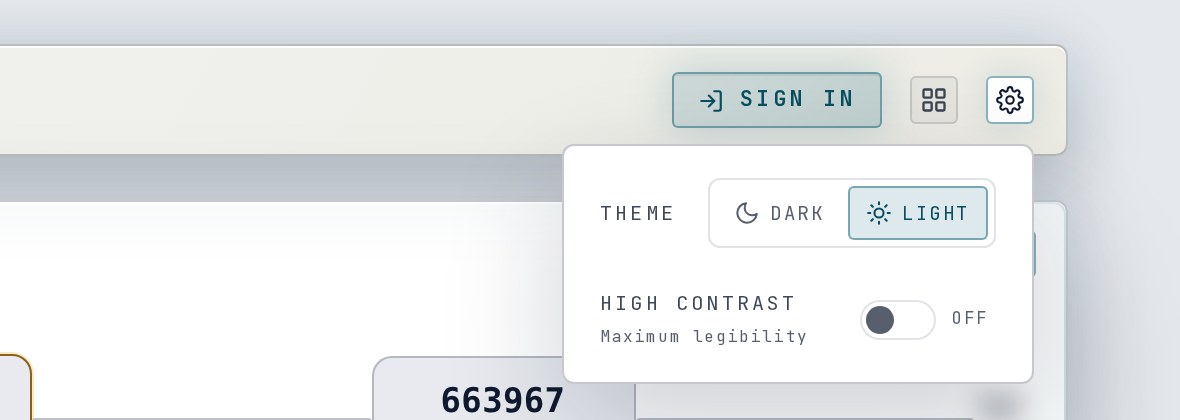
Display settings: theme and high contrast.
Display settings (the gear). Pick Dark or Light, and switch High Contrast ("Maximum legibility") on or off. These are saved in this browser only, not your account. On a phone, the gear moves to a round button in the bottom-right corner.
The "quietly off" banner. If a radio's power outlet is switched off, or a radio's repeat function is off, a banner appears under the top bar — for example "Repeat OFF on 2m (last read 14:05)". It has no buttons. It usually means an officer has taken that repeater off the air on purpose, so check with an officer before you report it as an outage.
The footer at the very bottom changes when you sign in, to "Member Console · Link control live · officers hold the rest".
Arranging your deck
You can put the tiles in your own order, hide the ones you don't use, and make each one wide or narrow.
Choose the grid button in the top bar. A toolbar appears and every tile gets a bar across its top.
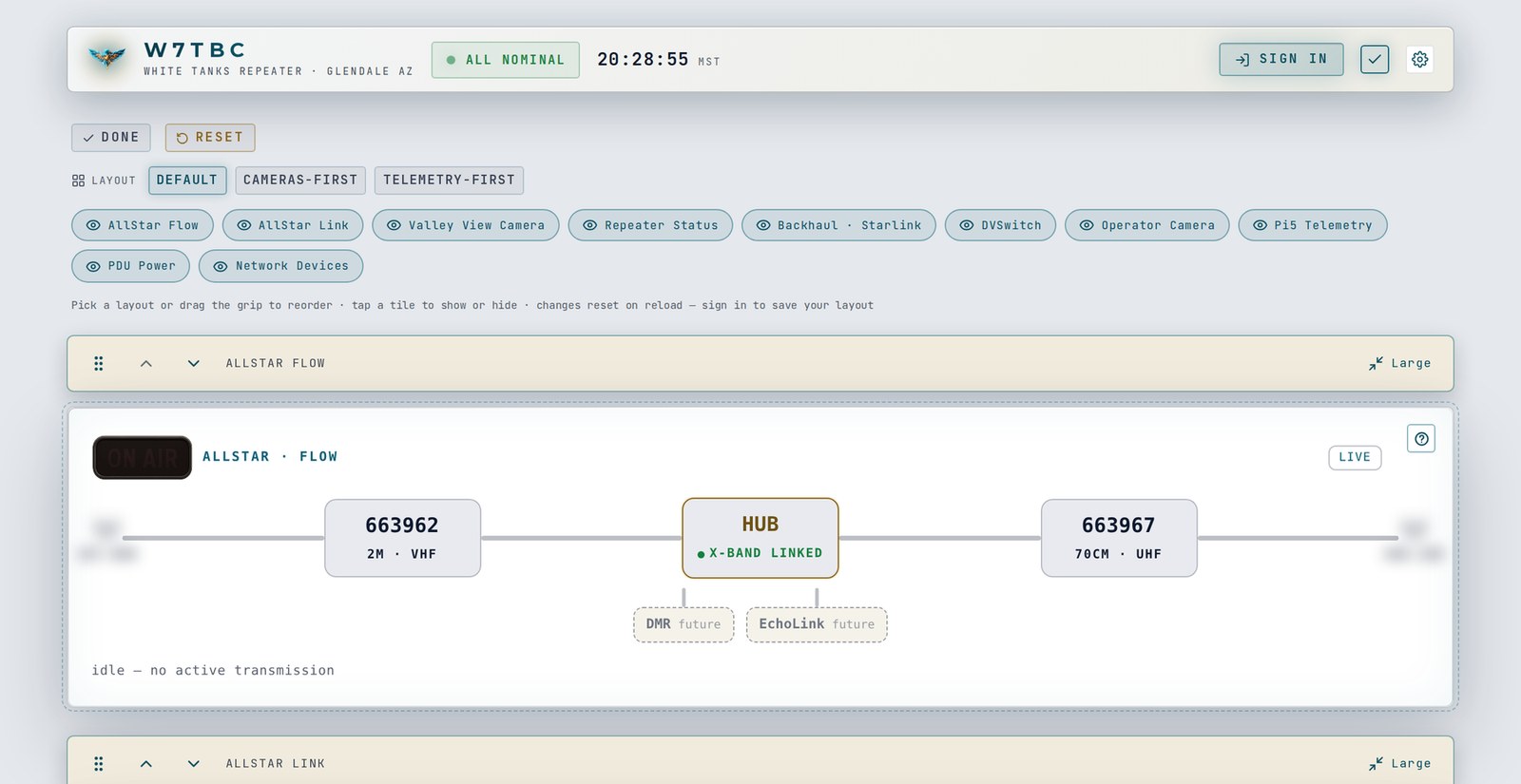
Arrange mode. This is the signed-out view, so the hint says changes reset on reload.
In the toolbar:
Done — leave Arrange. (The grid button, now a check mark, does the same.) Your changes are already saved; Done just closes the toolbar.
Reset — put back the club's default order, sizes and visibility. It doesn't ask first.
Layout: Default · Cameras-first · Telemetry-first — ready-made layouts. A layout sets the order and sizes but leaves hidden tiles hidden.
Tile chips — one per tile, with an eye icon. Tap a chip to hide or show that tile. Hiding a locked tile doesn't unlock it, and showing it doesn't either.
On each tile's bar:
Drag the grip (⋮⋮) to move the tile. With a mouse, press and move. On a phone, press and hold the grip for about a quarter of a second — a quick swipe still scrolls the page. With a keyboard, focus the grip, press Space, use the arrow keys, then Space again to drop.
▲ / ▼ — move the tile one place earlier or later.
Small / Large — small is half width, large is the full row. DVSwitch is always small.
The deck packs itself into two columns with no gaps: a lone small tile at the end stretches to the full width.
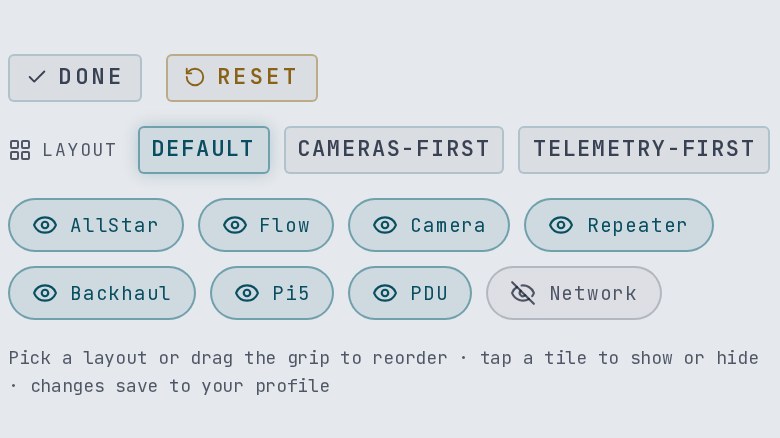
Signed in, the hint line says your changes save to your profile. (Phone width shown.)
Where your layout is kept:
Signed in: every change saves straight to your account, so the same layout follows you to any device. New tiles the club adds later appear in their default spot.
Signed out: you can arrange, but nothing is kept — a reload brings back the default.
On a phone the deck is always one column, so Small and Large look the same there. The size you pick is still saved and used when you open the console on a bigger screen.
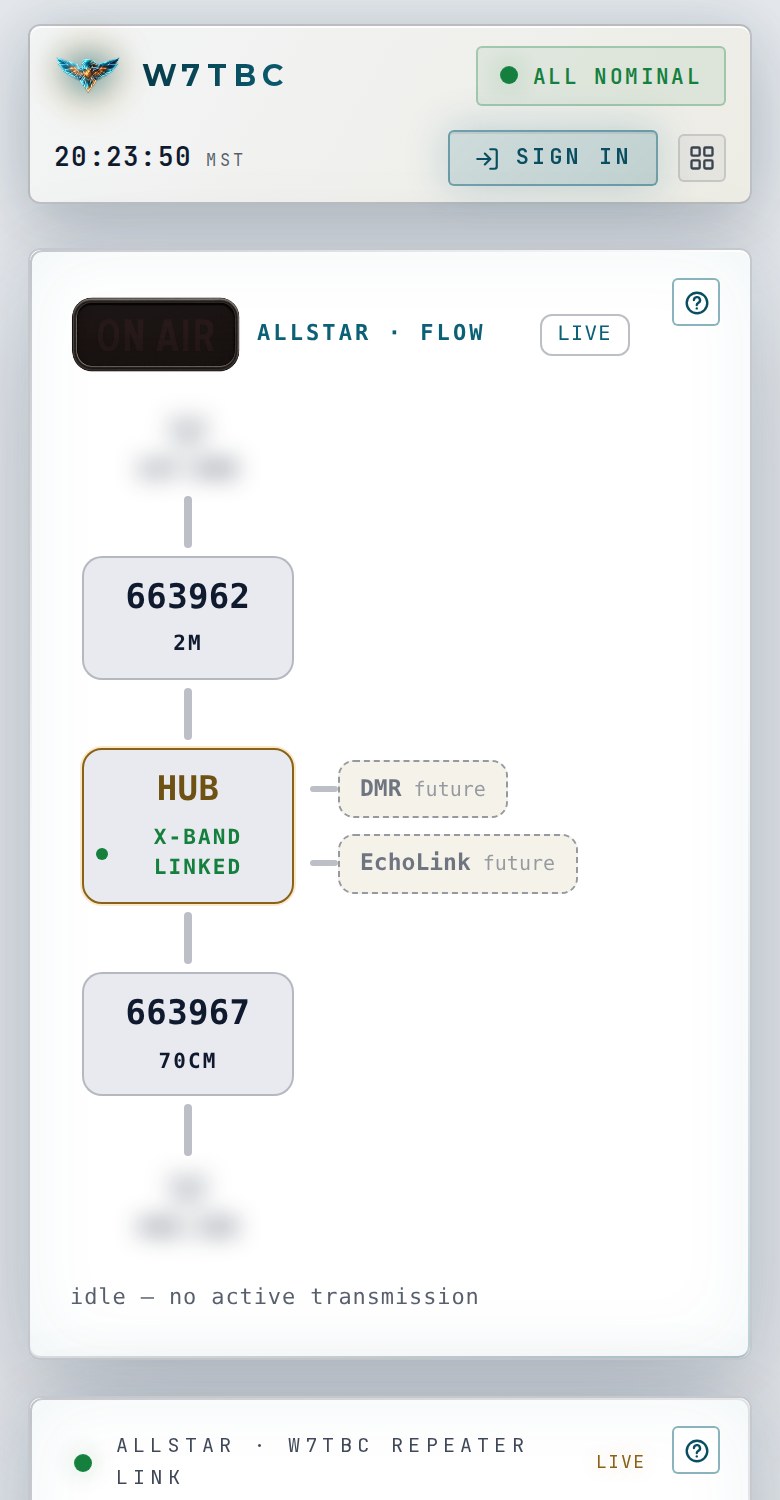
On a phone the deck is one column.
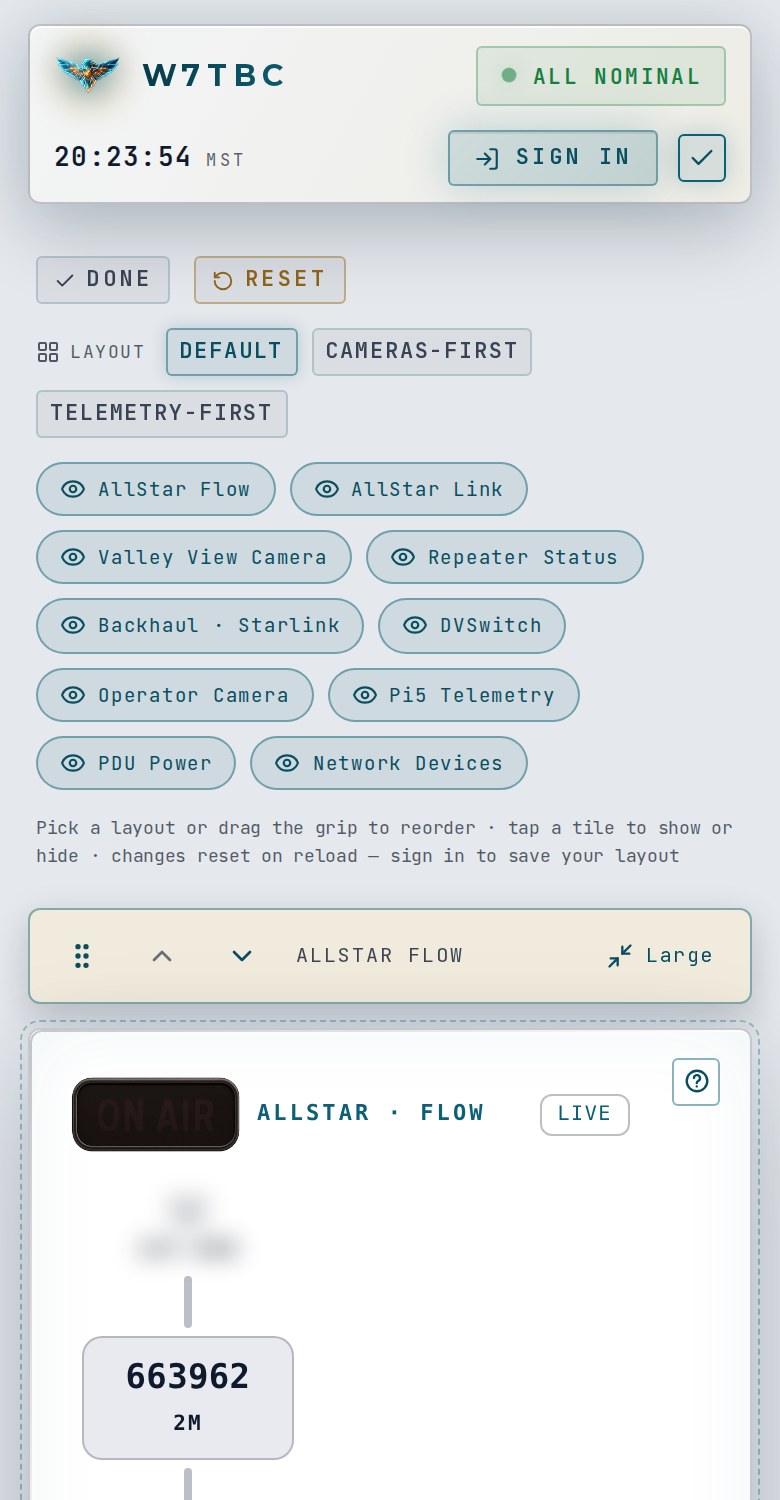
Arrange works the same on a phone.
The tiles, one by one
These are the tiles in their default order.
AllStar Flow
A live, animated map of where audio is coming from and where it's going. Nobody can control anything here — it's for watching.
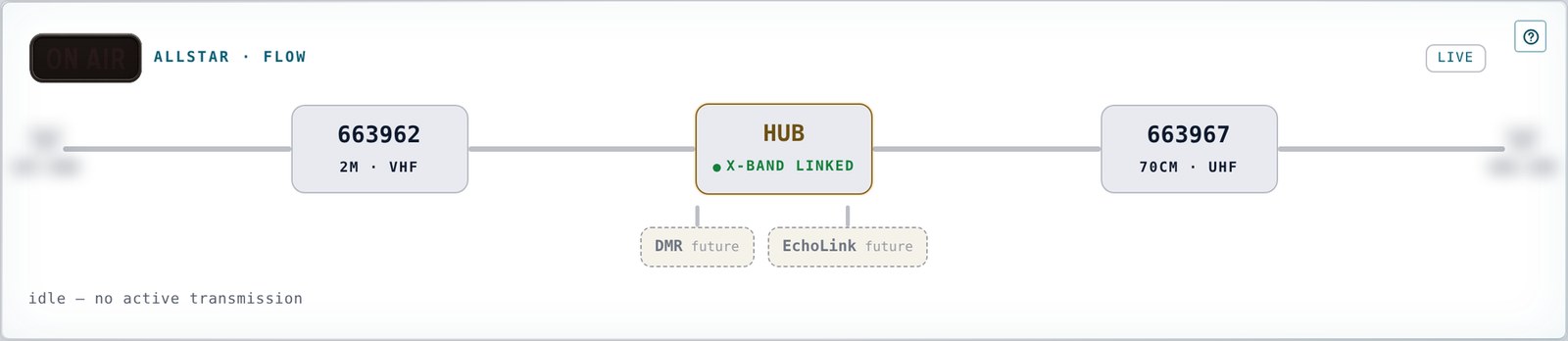
AllStar Flow. The antenna labels at each end show each radio's live frequency (blurred here).
The spine: node 663962 (2 m) — HUB — node 663967 (70 cm). The HUB reads X-BAND LINKED when the two bands are joined, or X-BAND OFF (dashed lines with a red ✕) when they're not.
Antennas: blinking red means that radio is transmitting; gold means it's receiving. A red antenna with no gold ring anywhere is the repeater itself — its ID or telemetry, not a person.
Chips under each station: T is a linked node in transceive; mon (dashed) is listen-only; client is someone on a phone or computer app, shown by callsign; +N more expands. DMR and EchoLink are placeholders marked "future".
Colours in motion: a gold ring shows who's talking, a red line shows where their audio comes in, teal lines show it going out. Dimmed lines are monitor links.
Freshness: live while updates arrive; stale · last seen after about two and a half minutes of silence, and the animation goes idle so it never shows a fake ON AIR.
The tile's Settings tab (behind its ? button) lets you choose the chip sort, whether to show monitor links and the future slots, full animation or static glows, and how long pop-outs linger. These are saved on that device only.
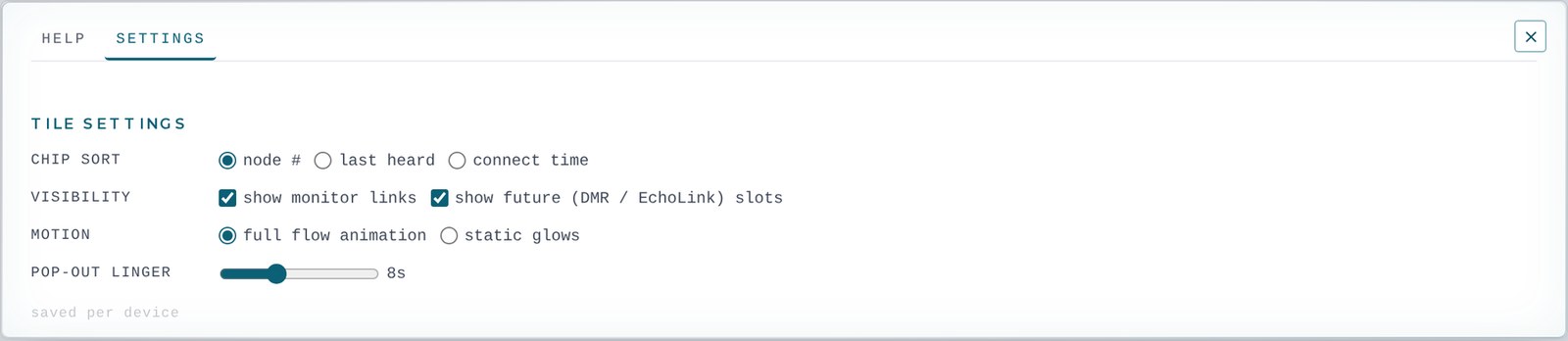
AllStar Flow settings.
AllStar Link
The heart of the console: both radios, every live link, the link controls, and the recent activity.
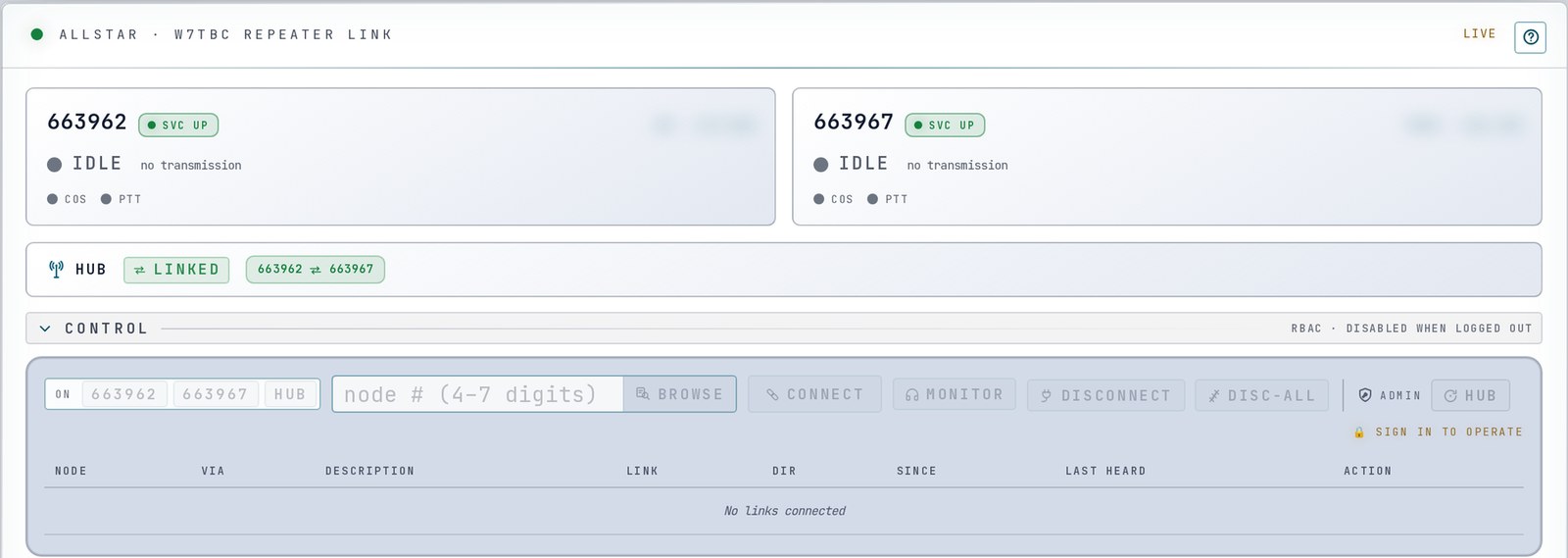
AllStar Link as a visitor sees it — the controls are grey until you sign in.
Radio boxes (2M and 70CM): ON AIR or IDLE (IDLE shows "no transmission" or the last station heard), the COS lamp (that radio is hearing a signal) and the PTT lamp (it's transmitting). The service lamp reads SVC UP (green), SERVICE DOWN (the box turns red — that repeater is not repeating) or SVC UNKNOWN (dashed amber — not proof of a fault, and never shown as healthy).
Hub strip: every live link on the repeater as a chip. ⇄ LINKED / UNLINKED shows whether 2 m and 70 cm are joined. Only officers (repeater operators and admins) can change it, so members see it grey.
Control: the link controls. See Connecting to other nodes.
Connected-nodes table: each link, which of our nodes holds it (Via), its description, Link mode, Dir (OUT = we connected to them, IN = they connected to us), Since, Last heard, and the Action column.
Activity: newest first — key / unkey (someone started or stopped transmitting) and conn / disc (a link came up or dropped), who (a callsign, a node, or RF for someone keying the radio directly), which node it was on, how long ago, and how long they held the key. Load older pages back through up to 30 days, until it shows "· end of history ·". The small bar chart is key-ups over the last 6 hours.
Favorites · scanner is a placeholder for a future feature. On-air audio is for net operators and officers; for members it just explains that.
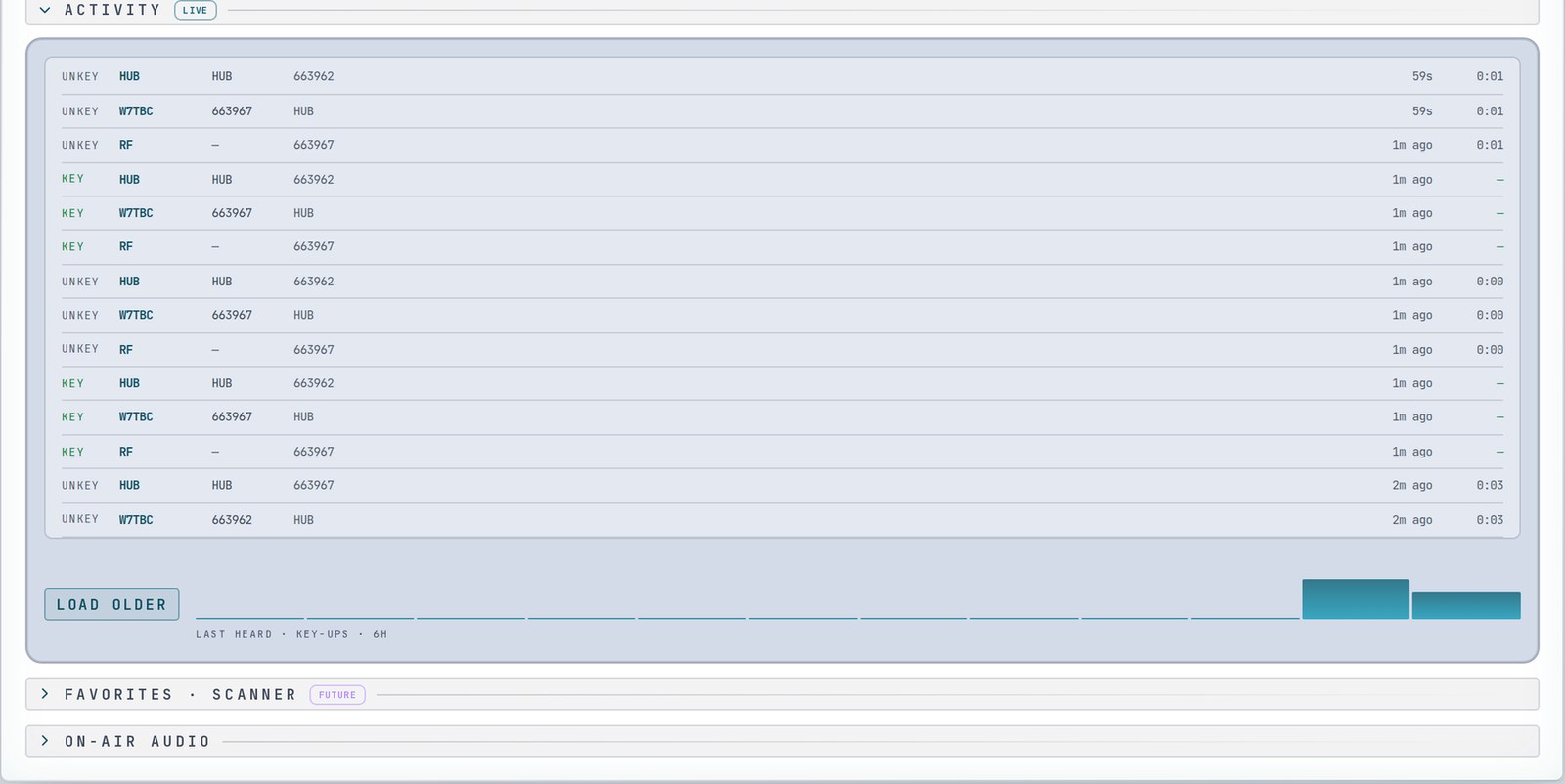
Activity, newest first.
Valley View Camera
The public site camera, looking east across the West Valley. See Cameras.
Repeater Status
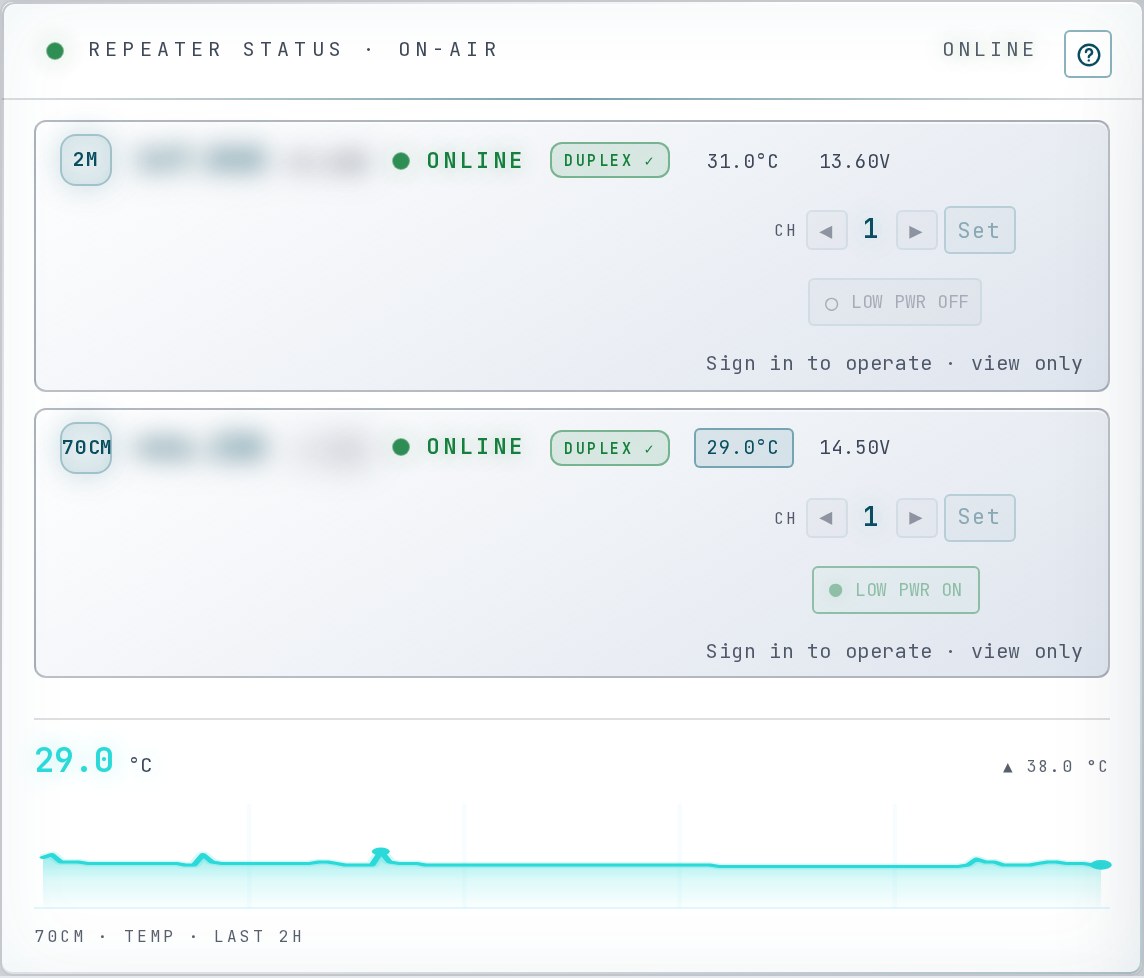
Repeater Status during bring-up, when each row also shows the frequency (blurred here).
One row per band — 2M and 70CM — with ON AIR / ONLINE / OFFLINE. While the site is in bring-up, the row also shows the live frequency and offset; the AllStar Link tile's radio boxes always show the frequency.
Duplex badge: duplex ✓ (the radio and the node software agree), duplex drift (they disagree), or duplex ? (one half isn't reporting — not proof either way).
Temperature and voltage: click a reading to graph it. They dash out if the feed goes quiet.
LOW PWR is for repeater operators, and channel changes (shown only while the site is in bring-up) are repeater-admin only. Both stay grey for members. Signed in, the line under them reads "Officers only · view only".
ONLINE / STALE at the top right is worked out when the page loads; reload to refresh it.
Backhaul · Starlink
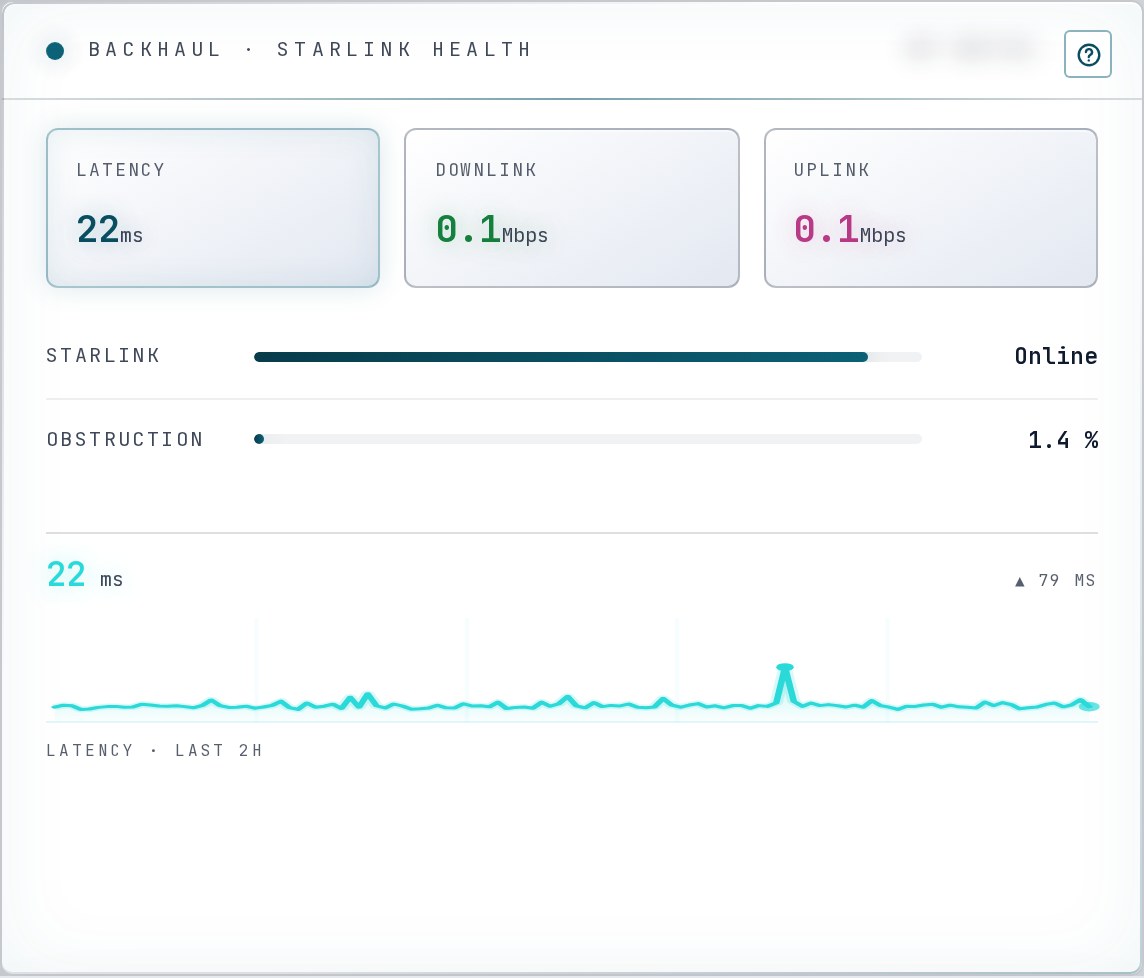
Backhaul · Starlink.
How the site's internet link is doing: Latency, Downlink, Uplink, Starlink state and Obstruction. Hover a reading to graph the last 2 hours.
These numbers are a snapshot from when the page loaded — reload for fresh ones. The dot in the tile's header is the honest freshness signal: teal is fresh, gold means no report for 15 minutes.
DVSwitch
A "Coming soon" card for digital-voice bridging (DMR, D-STAR, YSF, P25, NXDN, M17), marked In planning. Nothing to do here yet.
Operator Camera
The Operator Camera stays locked for members.
A second site camera for repeater operators and admins. Visitors see it locked as Restricted; signed-in members see Repeater Admin Only. Its picture never reaches a member's browser.
Members-only tiles
Signed out, these three tiles show a lock and Sign In To Activate. Signed in, they show live readings. All three are view-only for members.
Signed out, a members-only tile shows a lock.
Pi5 Telemetry — one card per repeater controller (2 m and 70 cm): CPU Temp, Load 1m, RAM, NVMe temperature, Wear and SMART health, plus a status lane for the AllStar software. Hover a row for a 2-hour graph. The restart button is grey for members.
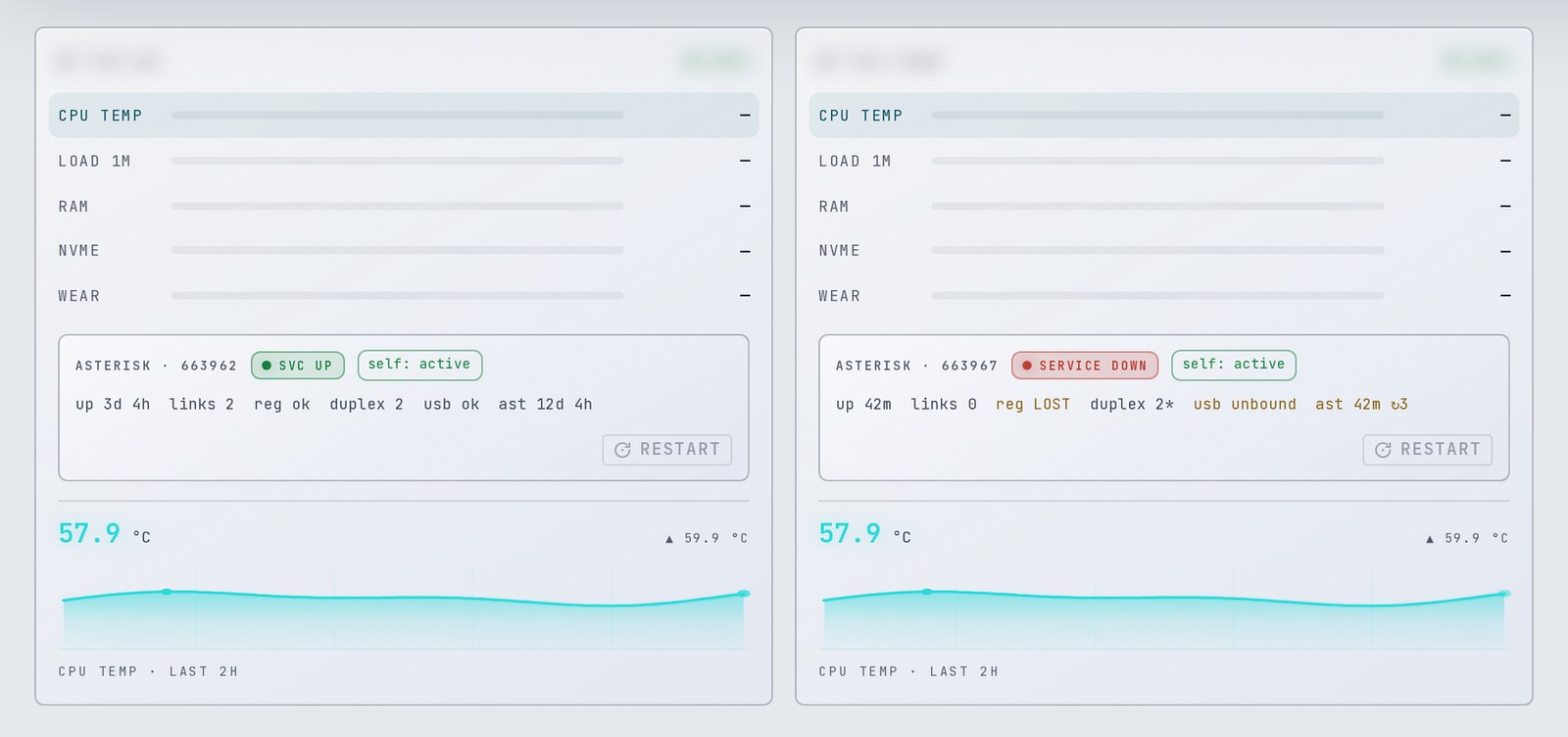
Pi5 Telemetry, shown with example data. Device names are blurred.
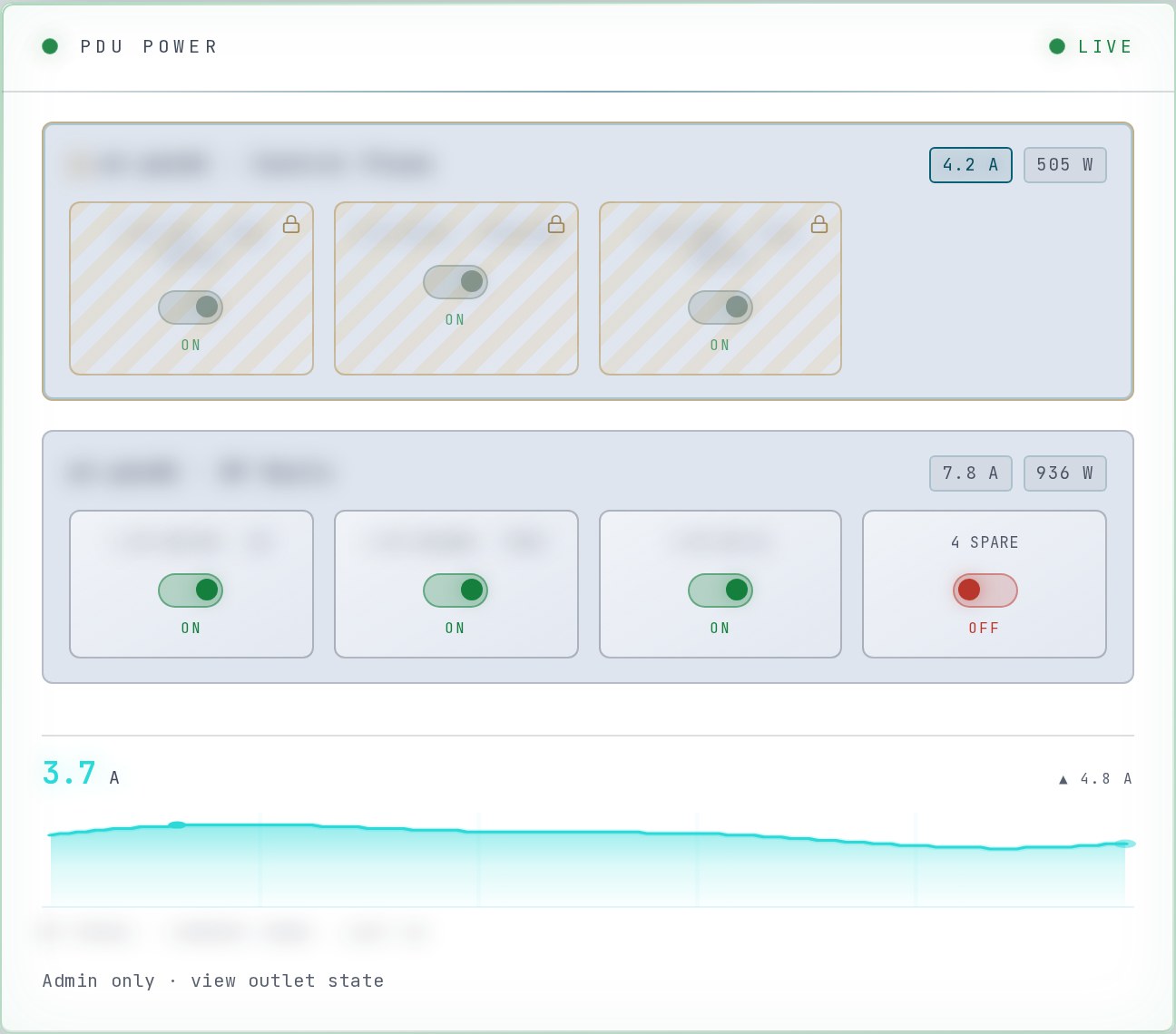
PDU Power, shown with example data. Outlet and device names are blurred.
PDU Power — the site's two power strips: the control-plane strip (always locked) and the RF-rail strip that feeds the radios. Green outlets are on, red are off. The Current Draw and Active Power chips set the 2-hour graph. Outlet on/off updates live; amps and watts are a snapshot from page load. If the power feed stops, this tile keeps showing the last values without warning. The tile's note reads "View only · switching requires repeater operator": repeater operators and admins can switch outlets, and members can only look.
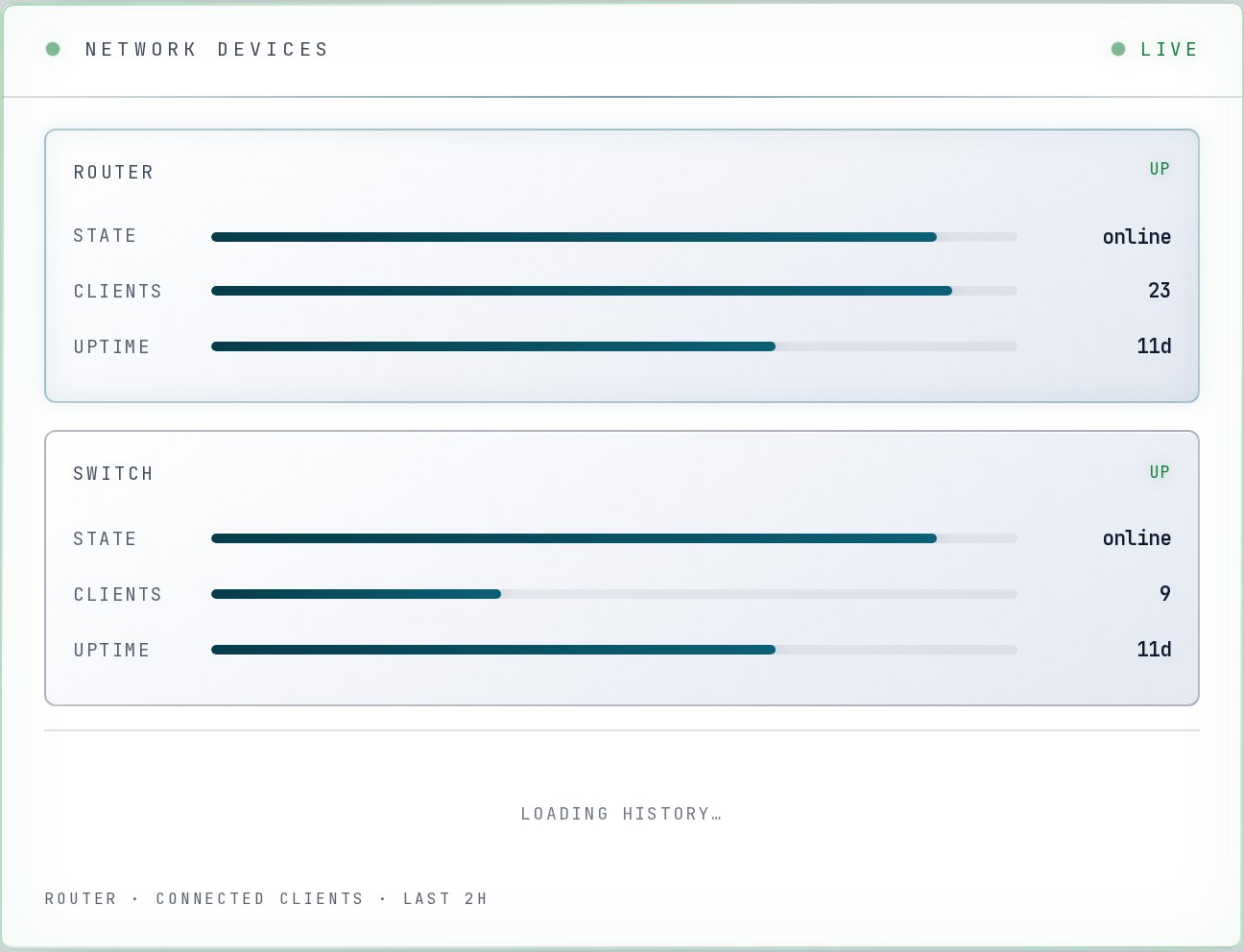
Network Devices, shown with example data.
Network Devices — the site router and switch: UP / STALE / NO DATA, state, clients and uptime. Hover a card to graph its client count. There are no controls here at all.
Connecting to other nodes
This is the one part of the console where a member changes the live repeater. Please read this section before you use it.
The two kinds of link:
Connect makes a transceive link: audio flows both ways. People on that node hear our repeater, and everything on that node is transmitted on ours.
Monitor is one-way: we receive them but don't send to them. Their traffic is still transmitted on our repeater; our users just aren't heard there.
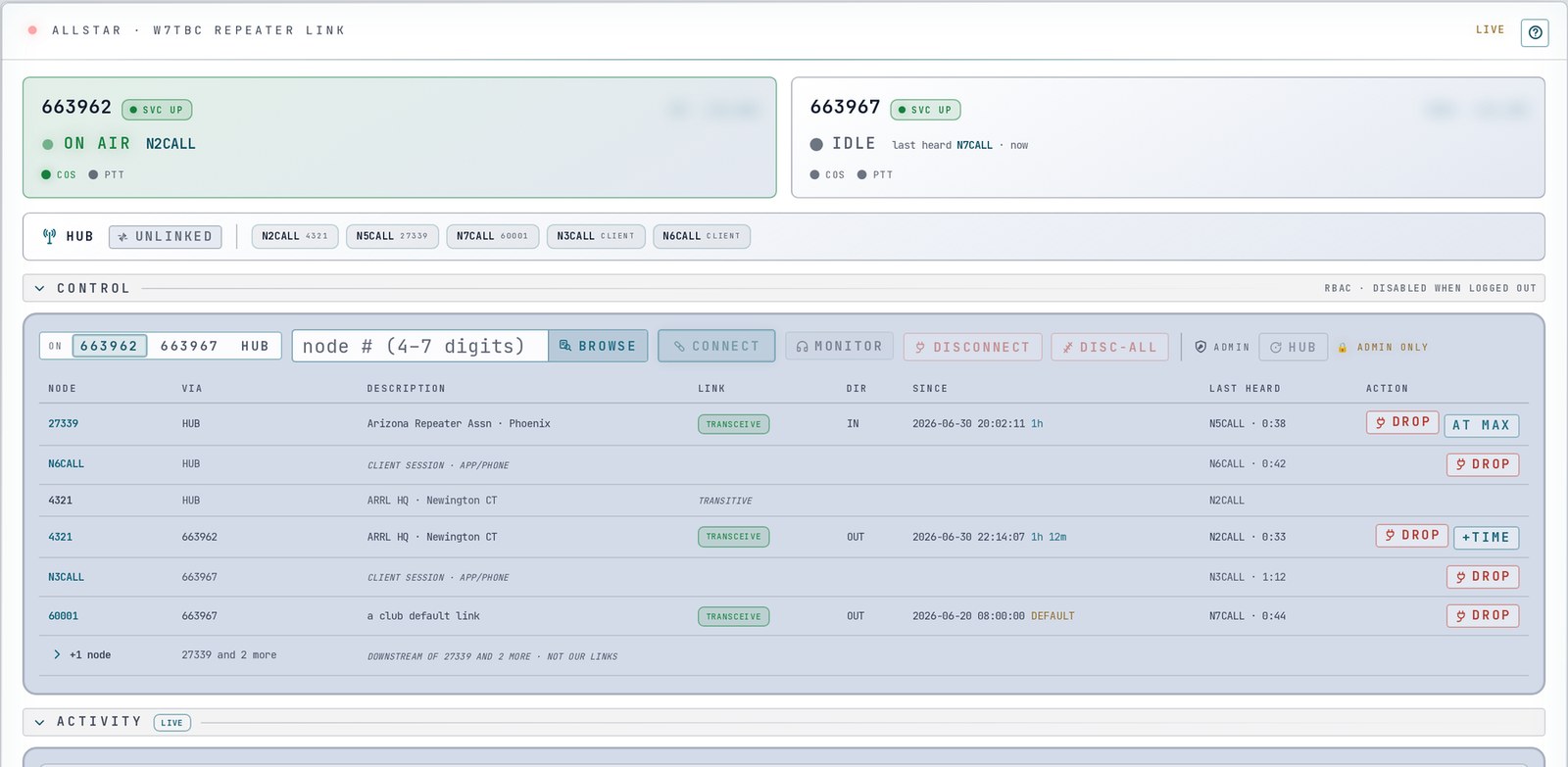
The link controls for a signed-in member, shown with example data. Callsigns are made up.
To make a link:
In Control, set on to the node that should hold the link: 663962 (2 m, the default) or 663967 (70 cm). HUB can only disconnect — it has no outward routing.
Type the remote node number (4–7 digits), or choose Browse to search the AllStar node directory by number, callsign, name or location. Picking a result only fills in the node box.
Choose Connect or Monitor. There is no "are you sure?" — the command goes on the first click.
Watch the status line. Run #N: confirmed. (green) means the change was seen; accepted. means the system took it but the device doesn't confirm; sent — unconfirmed (amber) means nothing confirmed it yet; a red message means it failed. A new link shows as Connecting while it comes up.
To end a link:
Disconnect in the Control bar drops the node in the node box — again on the first click.
Or use drop on that row of the table. This one asks first: the button turns into confirm?, and a second click within 4 seconds drops the link. Otherwise it disarms itself.
Link timers. If link timers are on, a link you make gets a timer and drops itself when it runs out. The Since column shows how long the link has been up, with a countdown beside it ("1h 12m", "12m", "45s") of how long it has left. The timer starts when the link connects and runs whether or not anyone is talking. Choose +time on that row to give it longer. The club sets an overall maximum, and may limit how many times one member can extend a link. If you see limit reached, at max, no timer or timers off, that's why. Extending transmits nothing. When timers are switched off, the table reads "leases off · links don't time out".
Links marked "default" are the club's standing links. They have no timer, and members can't drop them.
The guard rails — messages you may see:
Message | What it means |
|---|---|
"One link change at a time — try again in 23s." | You made a link change in the last 30 seconds. Wait it out. (+time doesn't count.) |
"Node 12345 is one of the club's default links — it stays up. An operator can drop it if it needs to come down." | That's a standing club link. Ask an officer if it needs to come down. |
"That link is part of the repeater's own cross-band setup. An operator can split the bands with the cross-band control." | The 2 m ⇄ 70 cm join isn't a member control. |
"Can't confirm whether that link is one of the club's defaults right now, so it hasn't been dropped. Try again in a moment." | The safety check couldn't run, so nothing was dropped. Try again shortly. |
"HUB has no outward routing — connect via a radio node (663962 / 663967)." | Set on to 663962 or 663967. |
"Remote node must be numeric, 4–7 digits." | Check the node number. |
Every link command is logged against your callsign.
Not for members: Disc-All, the cross-band toggle, HUB and node restarts, Low Power, channel changes, power switching and On-air audio. They stay grey, and their tooltips say "Officers only" or "admin only".
Good practice:
Listen first. Whatever you link is heard on our transmitters — on both bands while the hub strip reads LINKED.
Links marked "default" stay up — the console won't let a member drop them.
If in doubt, ask an officer — k6ozy@w7tbc.org or the club Discord.
Sorting
There's one sort you can change: the order of the chips under each station on AllStar Flow. Open the tile's ? button, go to Settings, and pick Chip sort:
node # (the default) — node numbers in order, then callsigns A–Z;
last heard — most recently heard first;
connect time — longest connected first.
It's saved on that device. Everything else has a fixed order: the hub-strip chips, the connected-nodes table (grouped by which of our nodes holds the link), Activity (newest first) and Browse (the first 100 matches — type more to narrow it). The order of the tiles themselves is yours to set in Arrange.
Help on every tile
There's no separate help page — the help is built into the tiles.
The ? button. Every unlocked tile with live data has a round ? in its corner. It flips the tile over to a plain-English explanation of everything on it; × flips it back. AllStar Link's back face ("AllStar · How To Use") has a full glossary of every lamp and label, and a Who can use what line: "members can connect, monitor, disconnect and extend links; the cross-band join/split is officers only; disconnect-all is repeater admin and up." AllStar Flow's has Help and Settings tabs. Locked tiles and DVSwitch don't flip.
Tooltips. On a computer, hold the mouse over almost any chip, lamp, column heading or button for a one-line explanation. On a phone or tablet, use the ? face instead — it covers the same ground.
Folding sections. In AllStar Link, tap a section heading (Control, Activity…) to fold it away.
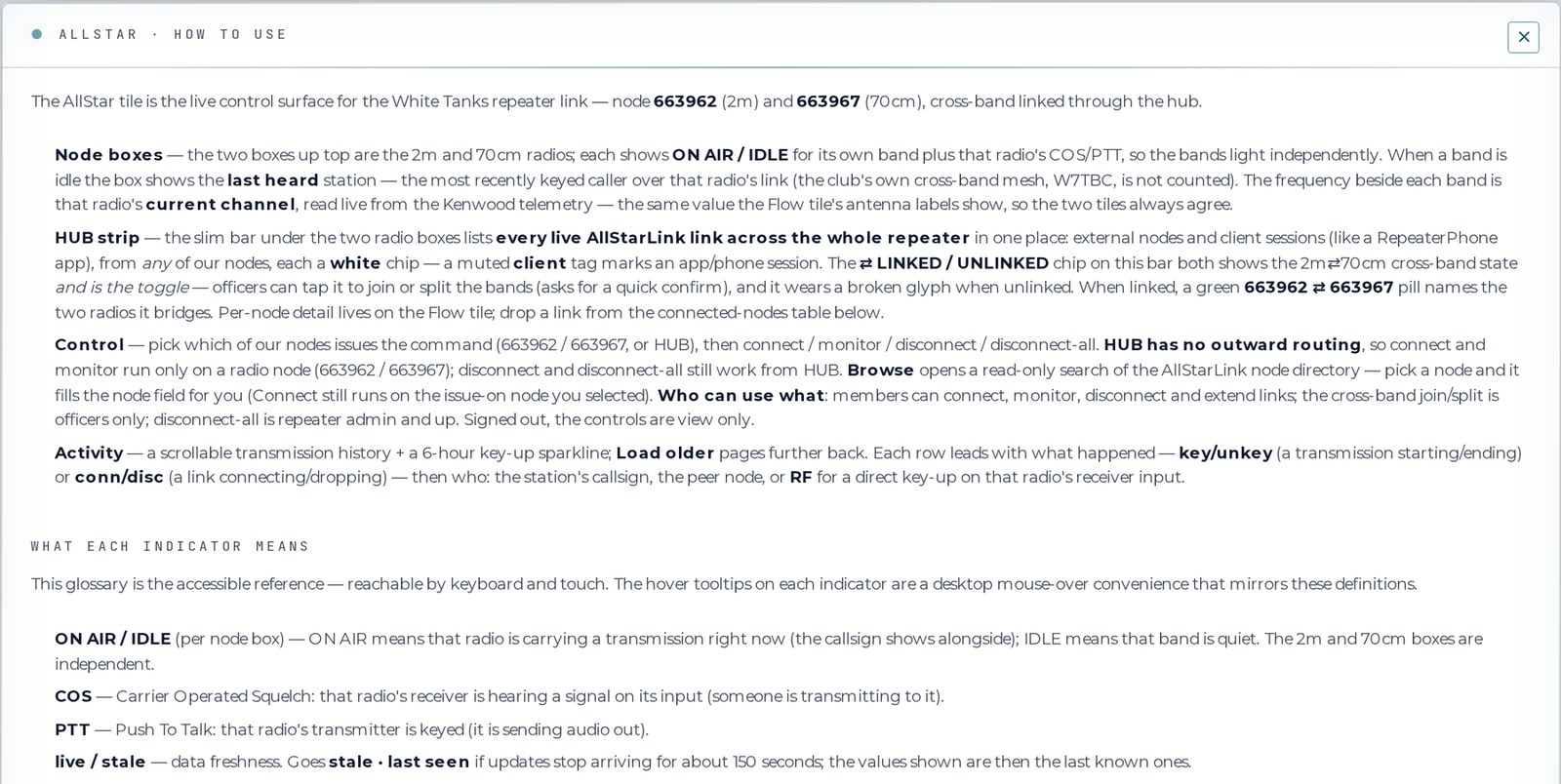
The ? face of the AllStar Link tile.
Cameras
The console has two cameras. Both show still pictures, not video.
Valley View (public) looks east across the West Valley from the White Tank Mountains.
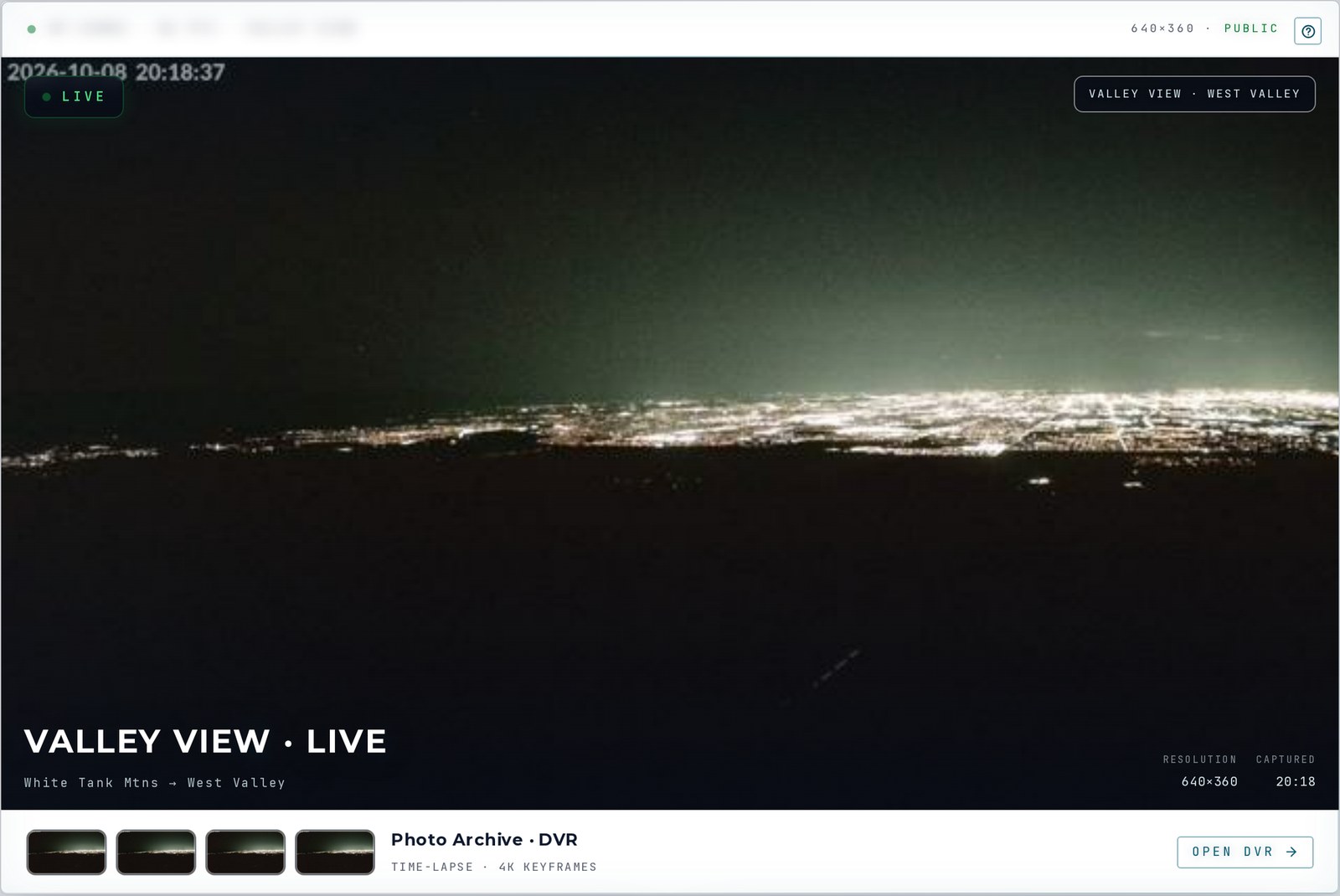
Valley View, captured just after dark on October 8, 2026.
How often it updates: the camera takes a new small picture about every 10 minutes, and your page checks for a new one about every 3 minutes on its own. A full 4K still is captured about every 3 hours. There's no video stream — the site's satellite link can't spare it.
LIVE / LAST SNAPSHOT: LIVE means the newest picture is under 15 minutes old. Captured shows its Arizona time. The badge is set when the page loads, so reload to refresh it.
Click the picture to open the latest 4K still. × or a click outside closes it.
Open DVR plays the time-lapse archive. Pick a window (15m to 48h; it opens on 24h), play or step through frames, change Speed, or Loop. Frames marked ◆ 4K KEYFRAME have a full-size still behind them. The small pictures are kept for 48 hours.
There's no refresh button for members. If the picture looks old, wait a few minutes or reload.
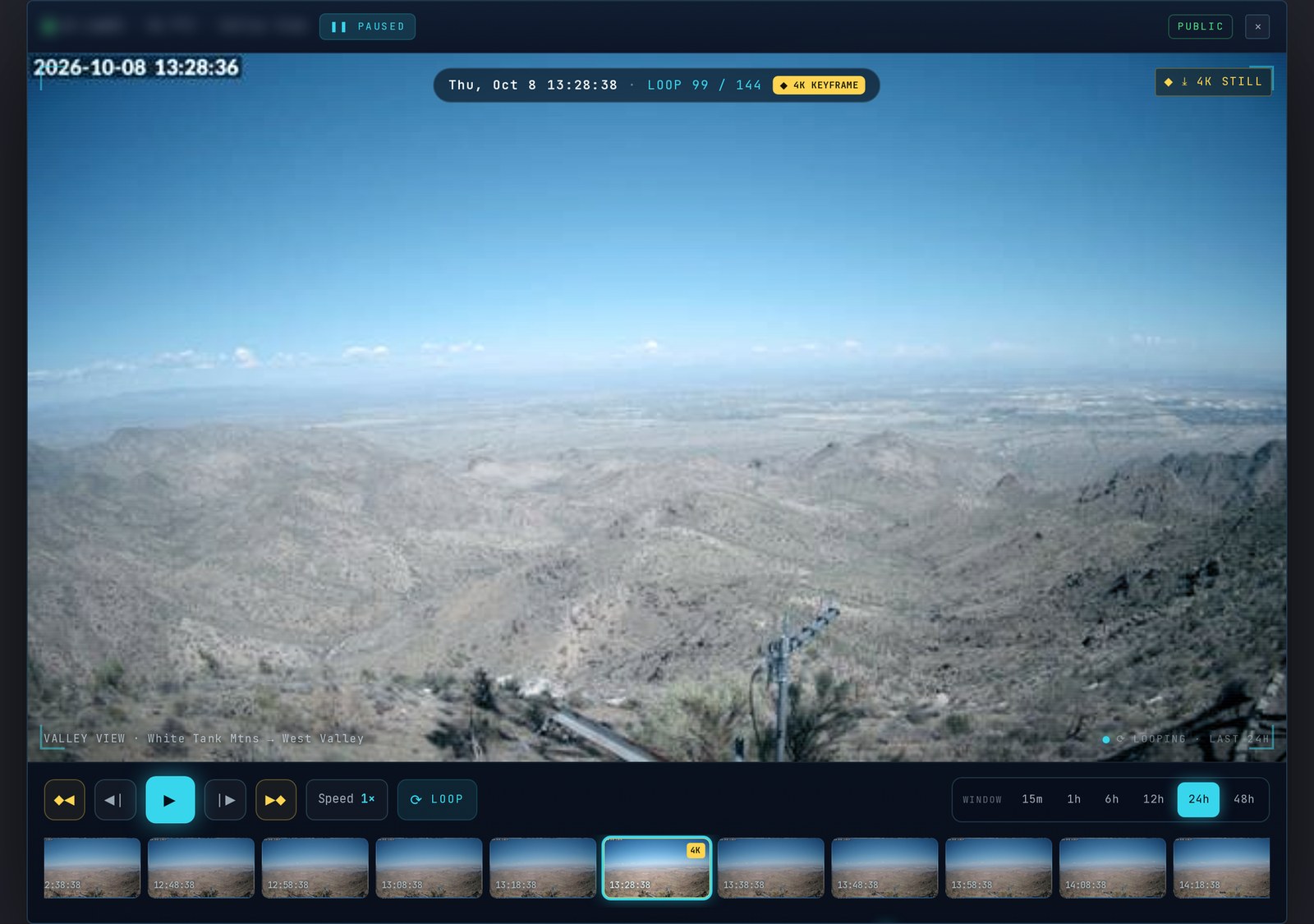
The DVR, stepped back to a daytime 4K keyframe from 1:28 PM on October 8, 2026.
Operator Camera is a second site camera for repeater operators and admins only. Members see it locked (see Operator Camera).
Troubleshooting & FAQ
The link controls are grey. Signed out, they always are — sign in. Signed in, Connect and Monitor stay grey until you type a valid node number and set on to 663962 or 663967. If they're still grey, your console role may not include link controls — ask an officer.
I signed in but this tab still looks signed out. The tab that asked for the link checks for about 16 minutes and unlocks itself. If you opened the link much later, just reload the console.
It says "stale · last seen". The live feed hasn't updated for about two and a half minutes. The numbers shown are the last known values. If you left the tab in the background, it pauses after 2 minutes and reconnects when you come back — it may briefly say "links not reconciled" or "history incomplete since…" while it catches up.
The verdict chip says Check Systems. A radio hasn't reported in 12 minutes, or a power unit is showing an alarm — or the page is old. Reload first. If it's still gold, look at the tiles and the "quietly off" banner, and tell an officer if something looks wrong.
The camera says LAST SNAPSHOT. The newest picture is more than 15 minutes old. Reload. If it stays that way, the camera or the site link may be down.
My layout didn't stick. Layouts only save when you're signed in. Signed out, every reload starts from the default.
I pressed Connect by mistake. Disconnect it straight away (wait out the 30-second cooldown if you see it), or drop it from its row in the table. Its audio was on the air while it was up.
Why can't I drop a link? It's a default link, or it's the 2 m ⇄ 70 cm join, or it's a station linked to a remote node rather than to us. Ask an officer if it needs to come down.
The theme went back to dark. Theme and high contrast are saved per browser. Set them again on each device.
Who to ask
Sign-in or membership problems: the membership chair, or any officer, to check your HamClubOnline record.
Something wrong with the repeater or the console, or a question about linking: an officer — k6ozy@w7tbc.org — or ask in the club Discord.