Discord for TBARC
Joining the club's chat, voice rooms and Elmer help — without the noise
The club has a Discord server. It is where the between-meetings conversation actually happens — questions answered at odd hours, gear advice, and a voice room you can drop into when something is not working and you want a human to talk it through. This is how to join it and use it properly, start to finish.
Nothing here requires a paid account, and none of it requires you to be technical. If you can install an app and type a message, you can do all of it.
The one analogy that makes it click
A server is a clubhouse. Channels are the rooms inside it, each for a different topic. You are not joining “Discord” the way you join Facebook — you are walking into one specific clubhouse, ours, and the rooms are already labelled.
That is genuinely most of it. The rest is knowing which buttons do what.
Install and join
Get the official app first. It is free.
- Computer: discord.com/download. Run the installer. On a Mac, drag Discord into Applications.
- iPhone or iPad: the App Store. Android: Google Play. Search for Discord.
- Already have an account? Use it. The same account works on every device, and basic club chat and calls do not need Nitro or any paid tier.
You can use discord.com/app in a browser without installing anything, and it is a perfectly reasonable way to have a first look. Some features are limited or depend on which browser you are using, so for day-to-day club use the installed app is the better experience.
Then open the invitation and choose Join:
Set your name — and keep your callsign off the open internet
This is the step to get right, and it is the one most people get wrong.
Keep your callsign out of your global Discord username and display name. Those are visible across the whole of Discord, and a callsign leads directly to publicly filed licence information, including an address. There is no reason to broadcast that to every server you ever join.
What you want instead is a per-server nickname, which applies inside TBARC only:
- Open the server-name menu at the top of the channel list. On a phone, tap the TBARC name first.
- Choose Edit Per-server Profile.
- Set Server Nickname to Callsign - Name — for example
K6OZY - Chris. - Save.
Inside TBARC, people see your callsign and your name, which is exactly what you want in a radio club. Outside it, they do not.
Reading and chatting
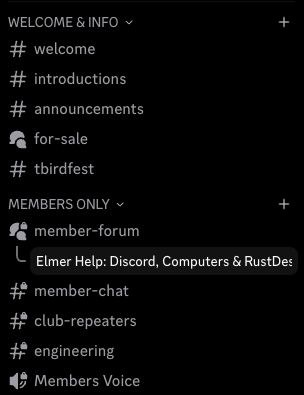
The channel list. Rooms marked # are chat; member-forum behaves like a traditional forum, with each topic its own post.
The channel list runs down the left. Channels marked # are chat rooms: new messages appear at the bottom, and you scroll up to read what you missed. Type in the box at the bottom and press Enter, or the send arrow on a phone. To answer a specific message rather than the room in general, use Reply.
Please pick the channel that matches your topic. It is the single thing that keeps a club server readable as it grows.
If you would rather have something that behaves like a traditional forum — QRZ.com, say — we have that too. member-forum works in threads: each topic is its own post with its own replies, it does not scroll away, and you can start a new topic whenever you like.
Meet Sparky
Sparky is our automated ham-radio helper, and it is genuinely useful. Type @Sparky, select it from the list, and ask one clear question — antennas, operating practice, equipment, study topics for an upgrade.
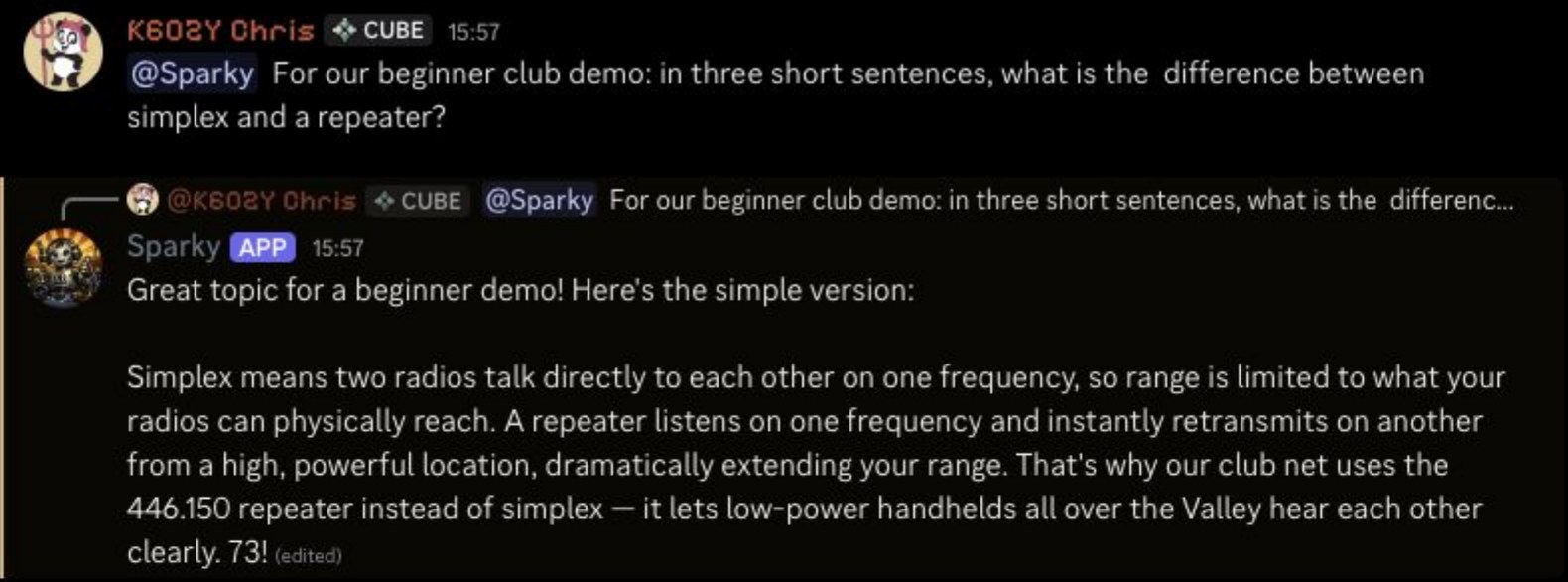
Sparky answering a beginner question in one of the club channels.
If an answer goes over your head, the follow-up that works is simply: “Explain that more simply.” It will.
Sparky works in most TBARC channels — ask in the one that fits your topic. For anything that really matters, treat its answer as a good starting point and have an Elmer confirm it.
Voice, and what every button does
Voice channels are the part that puts people off, almost entirely because the icons are unlabelled. They should not.
Find Elmer Sessions in the voice section and click it — on a phone, tap Join Voice. You are now in the room. You can sit there with your microphone muted and your camera off and simply listen, which is a completely normal way to start.
Controls sit near the bottom left on a computer, and in the call view on a phone. Hovering over any of them on a computer tells you its name. Here is the whole set:
| Button | What it does |
|---|---|
| Microphone — Mute | Stops others hearing you. You can still hear them. Click again to speak. |
| Headphones — Deafen | Stops you hearing anything, and mutes you. Turning it off does not unmute you — check Mute separately before speaking. |
| Webcam — Camera | Turns your picture on or off. Completely separate from the microphone. |
| Monitor with arrow — Share | Shows a window or your screen to the room. Finish with Stop Sharing. |
| Telephone — Disconnect | Leaves the voice room. Note that changing text channels does not leave the call. |
| Gear — User Settings | Opens settings. Small arrows beside controls pick devices and options. |
| Activities / Soundboard | Games and sound effects. Not needed for club voice chat. |
Two readings that save confusion: Voice Connected means you are in a voice room, and a slash through any control generally means off or muted.
Sound, camera and screen sharing
Try these with an Elmer before your first real conversation, not during it.
Microphone and speakers
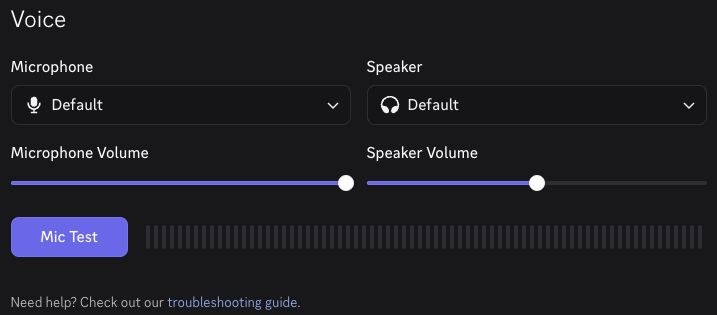
Voice & Video settings. Pick your headset by name rather than trusting “Default”, then use Mic Test to hear yourself back.
Go to Gear > Voice & Video. Input is your microphone, Output is what you hear. Select your headset by name rather than trusting “Default”, check the volume sliders, and use Mic Test to hear yourself back — then stop the test.
Use headphones. This is the single biggest improvement you can make to a voice room; speakers feed your microphone and produce the echo that makes calls unpleasant for everybody else.
On a phone, allow microphone permission when you want to speak, and check both the call’s speaker or Bluetooth control and the phone’s own volume.
Camera
Entirely optional. When you do want it: open the arrow beside the camera control, or Voice & Video > Camera; choose your webcam; preview the picture; then Turn On Camera. Click the camera again to turn it off. On a phone, allow camera access and use the front/back control.
Sharing a window
This is how somebody helps you with programming software or a radio manual.
- Join voice, and open the window you want to show.
- Click Share Your Screen (the monitor with an arrow).
- Choose the specific application or window — not the whole screen, if you can avoid it. Confirm Share or Go Live if asked; some versions start as soon as you select.
- Finish with Stop Sharing.
On a phone it is Share Screen > Start Now or Start Broadcast, and you return to Discord to stop it. A phone may share its entire screen, so silence your notifications first.
Worth being clear about: sharing shows people your screen. It does not let them touch anything. Remote control is a separate tool entirely.
Quieting the notifications
This is why people leave Discord, and it is completely avoidable. Out of the box a busy server will buzz at you constantly. Ninety seconds of settings fixes it permanently.
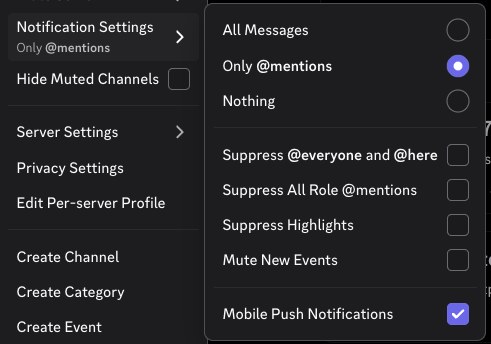
The setting worth ninety seconds of your time: Only @mentions, with per-channel overrides for anywhere especially busy.
A comfortable starting point:
- Open the server-name menu > Notification Settings. On a phone, tap the server name, then Notifications.
- Choose Only @mentions.
- For one particularly busy channel, right-click it (long-press on a phone) > Notification Settings and choose Mentions or Nothing.
Still too much? Suppress @everyone and @here and Suppress All Role @mentions will quiet the club-wide notices — just be aware that is exactly what they do, so read #announcements when you next visit. You can also suppress Highlights, mute New Events, or turn off Game Activity notifications under User Settings > Notifications.
If you have turned things too far down and want them back, check your device’s Settings > Notifications > Discord first, then the server settings, then any channel overrides, then Mobile Push Notifications — and check whether Do Not Disturb or Focus is on.
While you are in settings: User Settings > Appearance and Accessibility will increase the text size and let you pick a more comfortable theme. Worth thirty seconds.
Getting help
An Elmer is a fellow ham who helps you learn. That is the whole tradition, and it is the reason the server exists.
In member-forum there is a standing support topic for Discord, computer and remote-help questions. Open it and say three things: what device you are using, what you were trying to do, and what actually happened. That is enough for somebody to help you on the first reply instead of the fourth.
Members can also arrange a remote-assistance session with an Elmer, using software linked from that members-only post. If you arrange one: share your ID privately rather than in a public channel, stay at the computer, accept the connection yourself, and end the session when you are done. Keep passwords and remote-access IDs out of the forum entirely.
Quick fixes
- Cannot hear anyone? Check Deafen, then your output device, then the volume.
- Nobody can hear you? Check Mute, then your microphone selection, then the switch on the headset itself, then the app’s microphone permission.
- No picture? Check the camera selection, the permission, and the physical shutter.
- Members-only rooms missing? Ask an officer to check your callsign against your HCO record.
Take it with you
Two printable versions of this, depending on how much you want in your hand.
Building a station to go with it? Back to Basics #1 walks through a first 2 metre and 70 centimetre home station — radio, power, antenna and programming your first repeater memory.
Screenshots captured September 2026 from the desktop app; mobile instructions follow official Discord documentation. Discord’s own help pages cover server nicknames, video calls and screen sharing in more detail.
Thunderbird Amateur Radio Club · Phoenix, Arizona · w7tbc.org